Friday, June 15, 2007

Safari 3 Public Beta now on Windows


All of us know that Safari is the browser of Apple Macintosh Computers. Now Apple recently released Safari 3 beta on Windows. Safari 3 supports Windows XP/Vista. This beta version is working fine in Windows Vista with no problems.

Safari is the fastest web browser on any platform. It is faster than Internet Explorer 7 and Firefox 2. It has also the latest features like today's famous browsers. So I won't talk about it's features.

By default you see no status bar in Safari. You can make it visible by selecting Show Status Bar in View menu. Also by default no Home button is present in the toolbar. We can drag home button into the toolbar very easily. Select Customize Toolbar from View menu. Then drag Home button into the Toolbar. Now click done.

The color of Safari's Menu bar, Toolbar, Tab bar, Status bar is almost same as Windows Vista's Taskbar. So Safari's design is best suited for Windows Vista. Once look into the following Figure. You will agree with me.


Download Safari 3


Thursday, June 14, 2007

Bsnl Broadband configuration (single and multiple computers) for Windows Vista


Bsnl Broadband configuration to single computer:
The department will do all the wiring connectons of ADSL modem,Splitter etc. I will roughly tell about the wiring connections we have to do for getting internet.

My modem is Huawei Smart Ax MT 880. Spiltter is common to all. Now I will roughly tell the wiring connections.

On the back panel of Huawei MT 880 you can observe power suppy point, power on/off button, ethernet port and adsl port.

Splitter has two ports on one side. From one of the ports connect a RJ-11 Telephone cable to adsl port of the Modem. From the second port connect a RJ-11 Telephone cable to our phone instrument.

Splitter has another port on other side. From this port connect a RJ-11 telephone cable to RJ-11 socket.

Connect LAN cable from Ethernet port of Modem to Ethernet port of your computer. Give power supply to modem through the adaptor.

Windows Vista Bsnl Broadband Configuration:
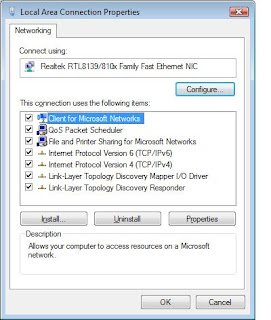
Open Control Panel. Then click Network and Internet. Now click Network and Sharing Center. Now click Manage Network Connections. Now right click Local Area Connection then click properties. Now click continue. Now Local Area Connection properties will be opened as below.


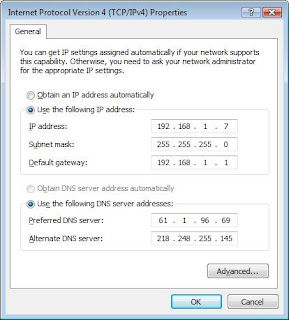
Now double click Internet protocol Version 4. Now configure TCP/IP Properties as explained below.

Select Use the following IP Address and set the IP address to 192.168.1.x(x is any number between 2 to 255). I have entered IP Address as 192.168.1.7 Now enter Subnet Mask 255.255.255.0, Default gateway 192.168.1.1, Preferred DNS server 61.1.96.69, Alternate DNS server 218.248.255.145 as shown in the figure below.


Now click O.K. Again click O.K.

Now you have to configure Huawei Smart Ax MT 880 adsl modem. I already explained about configuration of Huawei adsl modems in one of my articles. In the same article I also explained about sharing the internet connection among more than one Computer. So I won't explain it now. Just follow the link below for adsl modem configuration. Read that article from Huawei MT 880/MT 882 CPE Configuration. You can also get details of sharing the internet connection among more than one Computer in the same article. So follow the Link below for adsl modem configuration and for sharing the internet connection among multiple computers.

Huawei ADSL Modem Configuration


Tuesday, June 12, 2007

Windows Vista Installation


At first in CMOS settings select first Boot device as ATAPI CD-ROM. I already explained about this in my previous article How To Format the Harddisk? If you have any doubt once read that article.

So after setting first boot device as CD-ROM, then keep the Windows Vista DVD in the drive. Now restart the computer. The system will boot from Windows Vista DVD. Now it will display Press any key to boot from CD or DVD. So press enter. Then windows will load the necessary files.

After some time Install Windows screen will come. Now select language to install as English, select your Time and Currency Format as you like, select your keyboard or input method as you like then click next. Now click Install Now button. Enter your product key then click next. Now select the edition of Windows Vista you like and tick at I have selected the edition of Windows that I purchased then click next. Now accept the License terms then click next. Now select Custom (Advanced) installation then it will display all partitions in your harddisk. Now select the partition1 to install Windows Vista. Your partition must be NTFS to install Windows Vista. If your primary partition is FAT then click Drive Options (Read Note at the end). Now click Format. Then warning message will come. Just click O.K.

After completion of formatting partition1 as NTFS(primary) then click next. Now installation starts. The computer will restart after some installation is completed. After restarting again installation will be continued. After some installation again computer will restart. Now type your username then click next. Now type a computer name and choose a desktop background then click next. Now Help Protect Window automatically screen will come. Select your option as you like. Now Timezone window will come. Choose your Timezone then click next. Now click Start. Now Windows Vista will check your computer's performance. After sometime welcome screen will come and Windows Vista will prepare desktop for you. Now you completed Windows Vista installation.

Note: When you click Drive Options then options like DELETE, FORMAT, NEW, EXTEND will appear. By using these options we can delete any partition, format any partition or create new partitions.


Friday, June 08, 2007

Netscape Navigator 9.0 Features


Recently Netscape Navigator 9 released. So many new features are included in Netscape Navigator. Except the new features, other features are same as FireFox. This browser also works same as FireFox but with some new features as explained below. Netscape Navigator 9 is based on the latest Mozilla technologies.

Social Integration
Now Netscape navigator browser is integrated with the famous social news portal netscape.com. So now you can share and vote for webpages you like from Netscape Navigator browser. Just open the website page you want to share. Then you will observe Share button at the top right-hand corner of the address bar of your browser ( Share button will appear for webpages that are not already submitted to Netscape.com). For example open a page you like from my blog in Netscape Navigator 9. Then Share button will be appeared as shown below.


Now click the share button. Then netscape.com page will open asking your username and password. If you are already a member then enter those details( not a member, just signup). Now you will goto your member account. Click the Submit a Story link. Now enter Story URL , Story Title, Story Summary, Choose a Channel, Type 5 Tags or Keywords and then submit the content to Netscape.com. So now it is very simple to share the content you like from websites or Blogs.

URL Correction
Now Netscape Navigator will fix common typing mistakes in URLs. For example if you type www.wikipedia.com then Netscape Navigator will automatically correct the mistake and it will open www.wikipedia.org website. Netscape Navigator will watch for nearly 30 different types of common mistakes and correct them for you.

News
Netscape Navigator now contains News menu. You can get latest news on different topics from News menu directly.

The Sidebars
We know that in FireFox we have Sidebar feature in View menu. But in Firefox Sidebar we will find only Bookmarks and History information only. But in Netscape Navigator's Sidebar (Sidebar option in View menu) we will find the following features as shown in the fig.


We know about Bookmarks, History, Netscape News(From News menu also we will get the same news). With Mini Browser feature we can open websites in the Sidebar as shown in the figure below. Also we can open any link in Sidebar. Just you have to right click on a link and select Open Link in Sidebar.


With Netscape Friends Activity Sidebar, you will know what your friend's are doing on Netscape.com. With Linkpad feature you can save links/URLs that you want to visit later without cluttering your bookmarks. Just drag a link over the Link Pad status bar icon then drop it to save it in the Link Pad. By clicking on an item in the Link Pad will open it in the browser and remove it from the list. Observe the following figure for understanding linkpad.


The Netscape Tracker Sidebar tracks the very latest news from netscape.com.

Extension Compatibility
Netscape Navigator 9 is based on the latest Mozilla technologies. So you can install extensions that are compatible with Firefox 2 in Netscape Navigator also.

Sitemail Notification
This icon will display an exclamation point when you have new Netscape.com sitemail messages waiting for you.

OPML Support
Netscape Navigator support OPML format for sharing lists of newsfeeds.

Stop/Reload Buttions Combined
Since you never need Stop/Reload buttons at the sametime, both buttons are combined as single button in Netscape Navigator.

Restart Netscape
You can restart Netscape Navigator by keeping your current Tabs intact. Just select Restart Navigator from the File menu

Download Netscape Navigator


FireFox 3 (Gran Paradiso Alpha 5) Released


Gran Paradiso Alpha 5 is the next version of current FireFox version. FireFox 3 is built on Mozilla's next generation layout engine, Gecko 1.9.

Gecko 1.9 Alpha 5 introduces several new features like inclusion of the FUEL Javascript library for extension developers, new Page Info window, improvements to offline application support, many Cocoa user interface improvements and bug fixes.

Gran Paradiso Alpha 5 or FireFox 3 is now available for Windows, Linux, and Mac OS X.

Windows Users can download FireFox 3 at the location below
http://download.mozilla.org/?product=
granparadiso-alpha5&os=win&lang=en-US


MAC OS X Users can download FireFox 3 at the location below
http://download.mozilla.org/?product=
granparadiso-alpha5&os=osx&lang=en-US


Linux Users can download FireFox 3 at the location below
http://download.mozilla.org/?product=
granparadiso-alpha5&os=linux&lang=en-US


Windows Users can also download FireFox 3 at the following location
ftp://ftp-mozilla.netscape.com/pub/mozilla.org/firefox/releases/
granparadiso/alpha5/win32/en-US/

In FireFox, I.E 7.0 just type the above address then press enter. Then it will open the site then click Gran Paradiso Setup Alpha 5.exe link.