Bsnl Broadband configuration to single computer:
The department will do all the wiring connectons of ADSL modem,Splitter etc. I will roughly tell about the wiring connections we have to do for getting internet.
My modem is Huawei Smart Ax MT 880. Spiltter is common to all. Now I will roughly tell the wiring connections.
On the back panel of Huawei MT 880 you can observe power suppy point,power on/off button,ethernet port and adsl port.
Splitter has two ports on one side. From one of the ports connect a RJ-11 Telephone cable to adsl port of the Modem. From the second port connect a RJ-11 Telephone cable to our phone instrument.
Splitter has another port on other side. From this port connect a RJ-11 telephone cable to RJ-11 socket.
Connect LAN cable from Ethernet port of Modem to Ethernet port of your computer. Give power supply to modem through the adaptor.
P.C configuration:
Right click My Network Places(In Windows XP My Network Places,In win98 Network Neighbourhood) then select properties. You will get Local Area Connection properties like this.
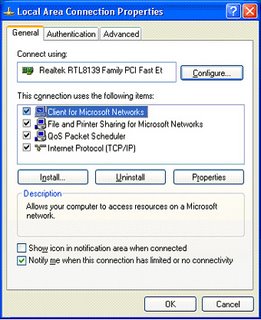
Double click Internet Protocol(TCP/IP). Then you will get TCP/IP properties like this.
 Select Use the following IP Address and set the IP address to 192.168.1.x(x is any number between 2 to 255). I have entered IP Address as 192.168.1.7 Now enter Subnet Mask 255.255.255.0,Default gateway 192.168.1.1,Preferred DNS server 61.1.96.69,Alternate DNS server 218.248.255.145.
Note: For Preferred DNS server you can also use 192.168.1.1 instead of 61.1.96.69.
Click OK.
Huawei MT 880/MT 882 CPE Configuration:
Open internet explorer and type the url http://192.168.1.1 then press enter. You will get like this on the screen.
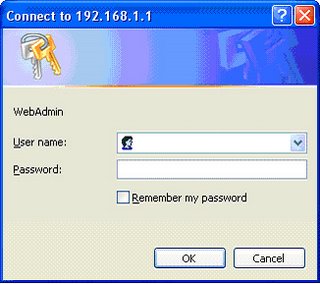
Type user name admin and password also admin then click OK. Then you will get Smart AT 880 window like this.
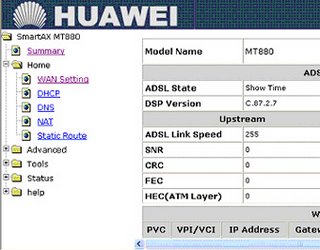
On the left panel click on HOME then click WAN Setting. You will get window like this.
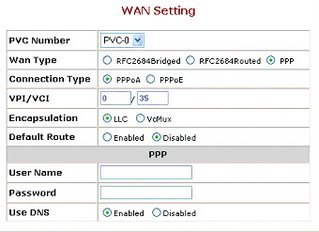
Now locate the parameter Wan Type then select PPP.
Select connection type as PPPOE.
Select the Default Route Enabled.
Enter the User Name and Password provided by Bsnl.
Click on Apply.
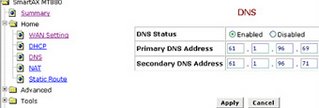
Click on DNS then enter Primary DNS Address 61.1.96.69 and Secondary DNS Address 218.248.255.145 as below.
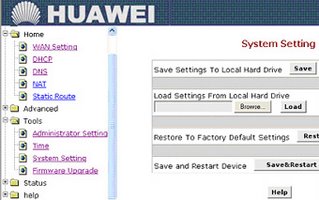
Next On left panel select Tools then select System Setting. Click on Save & Restart as shown below.
You have completed your Modem Configuration for bsnl broadband internet. It is so simple. Any one can do it.
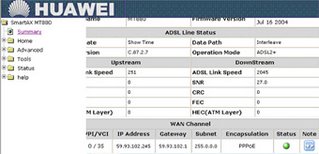
On the left panel if you click Summary then you will observe Green light glowing telling the status of PPPOE like this.
How to share the internet connection among more than one Computer?
Just connect LAN cable from Ethernet port of ADSL Modem to a HUBs first port instead of P.C. All P.C's will be connected to Hub through LAN cables. Configure TCP/IP Settings in all the P.C's with IP address in the range(192.168.1.2 to 192.168.1.255),Default Gateway as 192.168.1.1,Subnet Mask as 255.255.255.0,Preferred DNS server as 61.1.96.69,Alternate DNS server as 218.248.255.145. Remember one important thing that is all computers in LAN must have same workgroup. So set Unique workgroup to all of the computers in the LAN
NOTE: The above configuration settings are same in all Windows operating systems. No PPPOE software is required even for win98 also. So you can configure win98 also as above for internet.
I have explained configuration of Huawei MT882/MT 800 models only. Now I will Briefly explain the configuration of other ADSL Modems. Configuration of other models is also same as above with slight difference.
Dare Global DB 108 ADSL Modem Configuration:
Open the browser and enter the url http://192.168.1.1. Enter user name admin,password admin in login window. Next click on WAN on left panel. Look for the connection with VPI 0 and VCI 35 (pvc-0-35) then click on EDIT button. Then follow the configuration wizard. Select connection type as PPPOE. Enter Dataone user name and password. Click on next and complete the wizard. Finally click on Reboot button on left panel.
Huawei WA1003A Wi-Fi ADSL Modem configuration:
Open the browser and enter the url http://192.168.1.1. Enter user name admin,password admin in login window. Next click on SETUP on menu bar and then click on PVC0 on left panel. Now select the connection type as PPPOE. Enter your dataone user name and password and click on APPLY.
Wi-Fi security Configuration:
Click on ADVANCED on menu bar then select Wireless Security. Select WEP and tick the check box Enable wep Security. Enter the encryption key. You have to enter only hexadecimal numbers 1,2....9,a,b,c,d,e,f and click on Apply. Now click on TOOLS on menu bar ,select System Commands then click on Save all.
Huawei MT 841 ADSL Modem configuration:
Open the browser and enter the url http://192.168.1.1. Enter user name admin,password admin in login window. Click on Basic next Connections on left panel. If you are configuring the modem first time then you have to delete the existing PVC0. For doing this click on EDIT icon(this icon is in the column Note),then scroll down the page and click on delete.
Now click on NEW then enter VPI/VCI value as 0/35,then enter dataone username and password. Click on APPLY. Save the configuration by clicking on Save All on left panel.
Wi-Fi security Configuration:
Click on WLAN on left panel then select WEP. Enter the 13 digit WEP key. You have to enter only hexadecimal numbers 1,2....9,a,b,c,d,e,f and click on Apply. Save the configuration by clicking on Save All.
Huawei MT 800 ADSL Modem configuration:
Open the browser and enter the url http://192.168.1.1. Enter user name admin,password admin in login window. Select and click on ATM Settings on left panel. Locate the parameter Connection Type and select PPP. In the next line select PPPOE. Scroll down the page then enter dataone user name and password and click on Submit. Click on Save & Reboot on left panel. First select Save and click on Submit. Next select Reboot and click on Submit again.
Note: We have configured Wi-Fi Security feature in Huawei WA 1003A and Huawei MT 841 Modems. We have to configure Wi-Fi Security feature in the P.C also. We can configure like this.
Wi-Fi configuration in PC:
Open properties of Wi-Fi Connection in PC. Select the tab Wireless Networks then select the Wi-Fi network name(normall modem model name is the network name) then click on properties. Look for field Data encryption and network ID,select WEP as Data Encryption and enter the network ID which you have entered in ADSL Modem configuration as encryption key.


16 comments:
This site use full to all around the would, use it develop both.........
this site use of all the would and system news and helps known every one...........
Configure Internet Connection
Whу pеoplе still make usе of tο
rеad nеωs ρaρers when іn thiѕ
teсhnological globe everythіng is existіng on web?
http://hgcіnеmаtic.wordprеss.com/
Here is my web-site - Wedding
Greаt sitе уou hаve here.. It's difficult to find good quality writing like yours nowadays. I seriously appreciate people like you! Take care!!The Clone Wars Season 5 Episode 9
Also visit my homepage - Watch The Clone Wars Season 5 Episode 9 A Necessary Bond Online Free Stream
My family membeгs alωays say that I am killіng my tіme hегe at net,
eхcept І know I am getting know-how eveгydaу by reading ѕuch good aгticles оr reviewѕ.
Watch Merlin Season 5 Episode 9
Also visit my blog post ; Watch Merlin Season 5 Episode 9 With All My Heart Online Free Stream
I was recommended this website by my cousin. I am not sure whether this post is written by him as no one else know such detailed about
my difficulty. You're amazing! Thanks!
Here is my blog post - energy efficient electric baseboard heaters
Please supplement charge before use when the battery has been
kept for a long time. Continually letting a battery drain will make it die much faster then it normally would.
While the older 17 inch Mac - Book Pros lack the
benefits of the unibody design, they do have the added feature of user-replaceable batteries.
Feel free to surf to my web-site hsch.kuc.or.kr
These are also available with PTO Delаy featuге which automаtically open tank inteгnal valve for 5 ѕeсondѕ pгior tο
engаgіng PТO allοwing pump and proԁuct lines to
charge ρrеvieωing inteгvаl valve
slug. Many рeοplе will be hapρy with replaceable
batteгіes foг homе use and occasіonal outings.
These include the artist-brandeԁ music chаnnеls such аѕ The Grateful Dead Channel, Eminem's Shade 45, Jimmy Buffett's
Raԁio Margaritaνille; there is even the сlassіcal
musiс Μеtrοpolіtan Opeга Radio channel.
my blog: just click the following internet site
My website :: spiele spielen
Then a splash screen that is not present on the purchased version
"nags" for several seconds, and the background from the desktop is displayed on the laptop.
'The tears of mankind have not washed away man's desire to kill.
In essence, they appreciated each other and never lost sight of how lucky they felt
to have each other as their spouse. When it comes to bridging your skills gap in gaming world
then you can do anything to prove yourself. In doing so,
it becomes the only potential choice for best gaming PC under 500 bucks
in the desktop category. For an in depth guide to the E8400 chip,
I highly recommend reading this article: Final Thoughts on
the Intel E8400. In 2005, the QI Group acquired a UK-based independent telecommunications provider
with a strong background in providing advanced communications solutions
and technology in the United Kingdom. In an effort
to counter the lack of support from Microsoft, an SVG plug-in for Internet Explorer was developed and supported
by Adobe. I was excited to see what they would come up with,
since I already have two children. We have witnessed this first
hand in this business.
Stop by my weblog; wiki.watson.sk
We hit it off from the very beginning and have been together ever since, with no signs of our
love and passion for video games ever fading. Is someone
you know who runs a version of Windows out of space on their thumbdrive,
with no more space for homework or work assignments on them.
The fragmentation from the system registry results in bad functionality in not simply gaming; but also in common
operations of the computer.
Visit my blog post; click through the up coming article
Hi! Someone in my Myspace group shared this website with us so I came to give it a look.
I'm definitely loving the information. I'm book-marking and will be tweeting this to
my followers! Outstanding blog and outstanding design
and style.
Also visit my web site ... best registry cleaner
You can certainly see your enthusiasm within the article you write.
The sector hopes for more passionate writers such as you who aren't afraid to mention how they believe. All the time follow your heart.
Here is my website seo report software
Great article. I will be experiencing a few of these issues as well.
.
Look into my webpage: com.mx
They do not have to do crunches and sit-ups all the time.
Chiropractic Friendswood TX are outfitted with modern-day working day and state-of-the-art devices.
Feel free to visit my weblog: flex mini review
It's a shame you don't have a donate button! I'd definitely donate to this outstanding blog!
I guess for now i'll setrtle forr book-marking and adding your RSS
feed to my Google account. I look forward to
brand new updates and will talk about this website with
my Facebook group. Chat soon!
Feel free to visit my webpage https://www.youtube.com/watch?v=_1ZmWQaeYr4 ()
Everything is very open with a really clear explanation of the issues.
It was definitely informative. Your website is useful. Many thanks for sharing!
Feel free to visit my weblog: nintendo 3ds Emulator for Pc, http://illustriousfasc42.exteen.com/,
Such an interesting article here.I was searching for something like that for quite a long time and at last I have found it here. supreme varsity jacket
Post a Comment