Wednesday, May 09, 2007

Boost your Videochat with Gloopit


Recently (19th may) Gloopit was renamed as IVBot

All we know about emoticons. When we are chatting with our friends by using yahoo, msn messengers, then we use emoticons along with words. Sometimes words are not enough to express our feelings. In that case we use emoticons.

when we are chatting using Webcams(Video Chat), all the above messengers are unable to send emoticons with our video. But with Gloopit or IVBot(Freeware software) we can send a variety of emoticons during our MSN, Skype, Yahoo video chats. We can call this Gloopit video emoticons as Gloops.

Gloops are live video emoticons used to express our feelings when words alone just aren't enough during our Webcam chat by MSN, Skype, Yahoo messengers etc. We can choose a variety of emoticons like Hearts Bursting Out of our Eyes, Eyes Rolling After a Dumb Joke, Balls on our Cheeks, Tears Pouring Down from our Face and many more.

A lot of video emoticons are available with Gloopit or IVBot. By default some Gloops bundled with IVBot software. Those Gloops are available at free of cost. You can get more Gloops from Gloopit website. But you have to buy them. Only about 7 to 8 Gloops are at free of cost from the list given on Gloopit website.

How to use GloopitCam with Windows Live Messenger?
First connect your webcam to the PC. Install the necessary Webcam software. Check whether it is working O.K. If it is O.K then install Gloopit or IVBot software. Now run Gloopit or IVBot. Then it will ask some details like username, password, email address etc. So type a username you like. Then type a password you like. Enter the remaining details and start the program. The important thing is, you have to keep your Webcam in a right place and adjust it's angle position so that the camera will focus your face correctly. Then only video emoticons will work perfectly. For example if you sit in a chair in front of your computer, then keep your Webcam on the monitor in a right place so that it will focus your face correctly. If Gloopit or IVBot is unable to track your face, then it will give a message Face Lost. You can observe this message near the Gloopit or IVBot Tray Icon at the bottom right hand corner of your screen. Then just adjust the camera angle position until it focus your face correctly. Then it will give a message Face Found. Then only you can send emoticons via your Webcam. So placing Webcam in right place, adjusting camera angle position is most important.

Now login into your Windows Live messenger. Then from Tools menu choose Audio and Video setup. Then after setting speaker, microphone volume (both are not necessary) select the webcam as IVBot then click Finish.
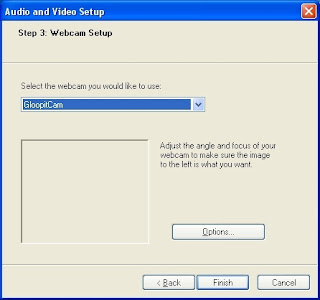


Now with your Windows Live Messenger, you can send your video emoticons via your webcam. See the following free Gloops.
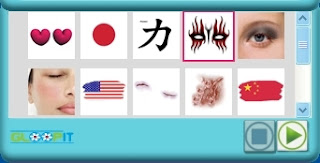


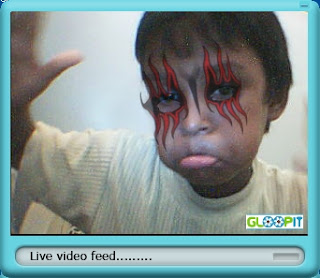
For example if you select the fourth emoticon in the above fig. Then with that emoticon you can threaten your friends via webcam like below.

In Skype you can enable Gloopitcam like below.
From Tools menu select Options. Now select Gloopitcam.

Observe the following captured Gloopitcam video. Then you will understand how Gloopit or IVBot will boost your videochat.

Also for how to capture Gloopitcam video, I have given a link below the video. That article will teach you how to capture video from Gloopitcam. I have captured this video from Gloopitcam by using Studiopro program.


For how to capture Gloopitcam video read my article

Download IVBot

The common problems that will occur when you run Gloopit or IVBot for the First time:
The first time when we try to run Gloopit it will give the following error messages.
1. The application has failed to start because MSVCR71.dll was not found. So you have to download MSVCR71.dll zip file. Then extract it. Then copy MSVCR71.dll file and paste it in Windows/System directory.

Download MSVCR71.dll

2. The application has failed to start because MSVCP71.dll was not found. So you have to download MSVCP71.dll zip file. Then extract it. Then copy MSVCP71.dll file and paste it in Windows/System directory.

Download MSVCP71.dll

After copying the above two dll files now run Gloopit. Still it is giving a error then simply uninstall Gloopit. After uninstallation, remove 3Dsolar directory from program files directory of C drive. Now install Gloopit freshly. This time it will work perfectly.

Other DLL Errors:
If you get any other dll errors then just goto the above site http://www.dll-files.com. In that site you will find Search for DLL Files. Just type the DLL you want in the box, then click O.K. Now it will display that DLL informaton. On the same page you will find the download link for that DLL file. After downloading the DLL file paste it in Windows/System directory.


Saturday, May 05, 2007

GX Transcoder


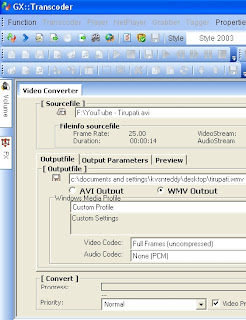
GX Transcoder is a Freeware universal audio and video file transcoder. The video converter converts video files into many formats like MPEG1, MPEG2, AVI and WMV formats.

The audio file transcoder transcodes audio files into many formats like AAC, MP4, M4A, Bonk, FLAC, LA, LPAC, MIDI, MP2, MP3, MPC, MPP, MP+, OptiomFrog, Ogg Vorbis, rkAudio, VQF, WavPack, TTA, WMA, Shorten, PCM, GSM, ADPCM, VOX, G721, G723, G726, uLaw, aLaw, DSP, Raw PCM, Monkeys Audio, AVI (Audio), MOD, Bonk and more.

Also GX Transcoder has a Cue-Cutter, a DB based Player, a NetRadio Stream Player with recording function.

Anyone can use this transcoder with ease. After installing GX Transcoder, you can find the Transcoder exe file in GXTranscoder v2 folder. This folder is in program files of C drive. Double click that file. Then GXTranscoder program starts. Click the Function menu then choose Video Coverter. Now you can convert videos with converter very easily.

Simply browse the video file you want to convert. Browse the output directory in which you want to save the converted video file. Then type a name for the file. Also select the format to which you want to convert the video. Then click Start Convert button. The converter simply converts the video to the required format and save the file in the directory specified by you.

Download GX Transcoder

Important Note: Check the source file once before do the conversion with GX Transcoder. Sometimes source file audio works but video not works. This happens due to video codec missing. Install the FFDShow MPEG-4 Video Decoder codec. With this codec you will see the video also. You can download this codec at the following site. So do the conversion after checking the source file once.

http://www.free-codecs.com/FFDShow_download.htm


Monday, April 30, 2007

Riva FLV Encoder(freeware)


We can transcode AVI, MPEG, Quicktime, WMV format video files to the advanced Flash Video (FLV) format with this free Riva FLV Encoder. Riva FLV Encoder comes with the free Riva FLV Player. So we can view the transcoded FLV files with Riva FLV Player.

Also we can transcode FLV to avi, mpeg, wmv formats with the help of Riva FLV Encoder.

We can extract the images form video files, cut the videos with a startoffset and a encode duration.

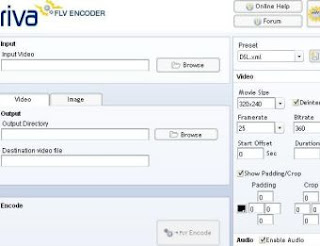
First I will explain how to transcode video files to FLV format files. Start the Riva FLV Encoder program. You will observe the Riva FLV Encoder options as shown below.


Suppose you have avi file named Tom and Jerry. Now browse the path of this file. Then at Output Directory browse the path where you want to save the FLV file(I have selected desktop). You can set the movie size also. Movie size option is at right hand side. Then click the Encode button. Then the transcoded file is saved at the specified directory as shown below.


Now let us transcode flv file named Tom and Jerry1 to wmv file. Procedure is same as above. But You have to change the extension of Destination Video File to wmv as shown below.


But when you play the file, it will give a message DIV3 codec is required to play this file. So download the above codec from the following site.

http://www.free-codecs.com/DivX_Free_download.htm

After installing the DivX Free 5.2.1 codec, we can play the above wmv file.

Onemore important thing. Suppose you transcoded flv file to avi file as explained above. But when try to play the file only audio comes but no video. You have to install the FFDShow MPEG-4 Video Decoder to rectify it.

http://www.free-codecs.com/FFDShow_download.htm

With Riva FLV Encoder we can also do Image Extraction, we can cut the video file with a startoffset and a encode duration. I will explain both of them now.

Image Extraction:
Observe the above figures. There are two options Video, Image in all the three figures. Just click Image option. Now browse the path of the video from which you want to extract images. Now browse the path where you want to save the images(You can extract first image or All Images. Also you can set the resolution.). Now click Encode button. Your Image will be saved in the directory you specified.

Cutting the Video file:
If you are playing a video file. Then the player will display the time in the lower right corner of player window. We can use this time duration intervals for cutting the video clip.

Browse the file you want to cut in Input Video box. At Output Directory browse the directory where you want to save the video. Also type the extention(avi or mpeg or wmv) of the Destination Video file as you like. Specify movie size. Now specify Start Offset and Duration in seconds as shown below. You can specify your own time intervals.


Now click Encode button. Then the video file will be saved in the directory specified by you.

Download Free Riva FLV Encoder

Free Riva FLV Player comes with Riva FLV Encoder. You can download Riva FLV Player separately from the link below.

Download Free Riva FLV Player


Thursday, April 26, 2007

Paint.Net


Paint.NET is an image editing and photo manipulation software. This is a Freeware program. Paint.Net is a powerful image editing software than MS Paint. In MS Paint we can not resize an image, we can not crop a selection, we can not apply special effects like emboss, blur, clouds etc, we can not have clone stamp tool etc. Paint.Net have all these features. At the same time we can not compare this with photoshop. So we can use this software instead of MS Paint, Irfan View etc. For advanced image editing techniques you have to use Photoshop only.

Paint.Net supports layers, unlimited undo, special effects, useful and powerful tools than MS Paint. This software's layers technique is O.K. But we can not compare this with advanced layer techniques of photoshop.

When compared to MS Paint, Paint.Net includes Gradient tool, Magic wand tool, Clone stamp tool, Text editor tool and a Recolor tool. Also many special effects are included in Paint.Net. We can use this software instead of MS Paint.

Paint.Net supports Windows XP, Windows Vista, Windows server 2003. For this software to work you must install .Net Framework 2.0 or .Net Framework 3.0

Download Paint.Net


Sunday, April 22, 2007

VidSplitter 1.2(Freeware)


VidSplitter is a complete Video splitting tool. It splits large AVI, MPEG, WMV, ASF files into smaller video clips. This program is very easy to use. No technical experience is needed.

This is a freeware program. It splits the files with high speed and with good quality.

Download VidSplitter

Important Note:
For this program to work you must install FFDShow MPEG-4 Video Decoder. This video codec is must and should.

Download FFDShow MPEG-4 Video Decoder