Microsoft DirectX is a group of technologies designed to make an ideal platform for Windows based computers for running and displaying rich multimedia applications.
June 2007 Redistributable Package is DirectX 9.19.1007 version. This DirectX redist package includes all the latest and previous released DirectX runtime. This includes the bi-monthly D3DX, XInput, and Managed DirectX components with file size of 53.6 MB. This DirectX runtime cannot be uninstalled.
Download DirectX June 2007 Redist Full Package
Recent DirectX End-User Runtime Web Installer needs internet connectivity during installation. This package provides updates to DirectX 9.0c and previous versions of DirectX. This package is available to customers running genuine Microsoft Windows. This DirectX runtime cannot be uninstalled.
Download DirectX End-User Runtime Web Installer
Sunday, July 29, 2007
Download DirectX(June 2007) Redist full package and DirectX End-User Runtime Web Installer


Saturday, July 28, 2007
Debugging Tools for Windows
Debugging Tools are used for debugging windows operating systems. They also debug drivers, applications, and services run on the windows operating systems. Both 32 bit and 64 bit Debugging Tools are available. You can use 64 bit Debugging Tools package, if you have a 64 bit Processor system. These are Free Tools from Microsoft.
32 bit Debugging Tools supports 32 bit or 64 bit Microsoft Windows Server 2003, 32 bit or 64 bit Windows XP, Windows 2000, Windows NT 4.0, Windows Vista, or Windows Server with codename Longhorn.
64 bit Debugging Tools supports 64 bit Microsoft Windows Server 2003, 64 bit Windows XP, 64 bit Windows Vista, or 64 bit Windows Server with codename Longhorn.
Download 32 bit Debugging Tools for Windows
Download 64 bit Debugging Tools for Windows
Friday, July 27, 2007
Slax 6.0 RC6 - The Linux O.S which runs from the CD
Slax is the the Linux operating system which runs directly from the CD or USB without installing. Slax fits on a small disc. Slax 6 RC6 includes Linux Kernel 2.6.21.5 and KDE 3.5.7. Slax 6 RC6 is based on Slackware 12.0 Linux distribution and uses Unification File System. Below is the screenshot of Slax.

After downloading Slax6RC6.iso from ftp site, then you have to burn it to a CD. Start your CD writing software and search for Burn image or Burn CD iso image option. Then burn the iso image to a CD using the Burn image option. The CD works only if you select Burn image or Burn CD iso image option.
The computer boots from Slax CD in three different ways. First one depends on type of motherboard. While booting your system from Slax CD, press a special key F11 or F2 or F10. Many motherboards support this method. Second method is, you have to set CDROM as first boot device in BIOS SETUP. Third way is by starting DOS and using linux.bat program from SLAX CD.
Download Slax 6.0 RC6
You can download Slax old and new versions from here.
Download Visual Studio 2008 Beta 2
Microsoft announced Visual Studio 2008 Beta 2 version. Visual Studio 2008 is the next generation development tool for Windows Vista, office 2007, and the Web. Visual Studio 2008 provides tools that speed creation of software and services on the latest platforms, including the Web, Windows Vista, Office 2007, SQL Server 2008, and Windows Server 2008. Visual Studio 2008 enables the developers to solve complex business problems at low cost. The developers can develop quality software with the new Tools of Visual Studio 2008. Developers can improve their skills and work with Visual Studio 2008.
All versions of Visual Studio 2008 beta 2 will be available at the following Microsoft site. Also you can download latest Microsoft.NET Framework 3.5 Beta 2 from the same location.
Download Visual Studio 2008 Beta 2
Thursday, July 26, 2007
Shup v0.14 - Free Screen capture Utility
Shup is a free Program which captures your desktop and uploads files to many different hosts. Shup also includes a built in Image Editor. You can share your screenshots, images, and other files by turning them into web links with this small utility program Shup. Shup supports Windows 2000, Windows XP, and Windows Vista.
How to Use Shup?
When you run Shup program then Shup Icon will sit in system tray. If you want to take a screenshot of your desktop or the currently active window, then right click on the Shup icon at the system tray, then select Capture Desktop. Wait for sometime. Shup will take the screenshot of the desktop or active window and store it in default directory C:\Program Files\Shup\Archive. The image is saved in PNG format only. Also the image is automatically uploaded to any one of the supported hosts like ImageShack, Stasbox etc. Also the URL is placed into your clipboard so that you can easily copy and share that image url with your friends.
See the screenshot below, taken by Shup
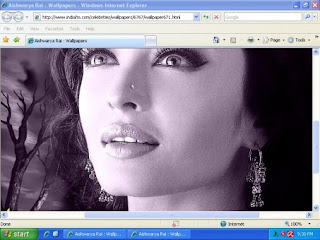
You can also get the URL details in another way. Just doubleclick on Shup icon at the system tray. Then Shup history window will open. Just click an item in history window. Then Shup will display the item details as shown in the figure below.
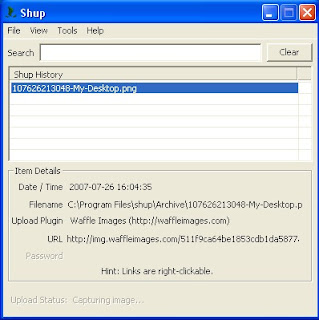
You can upload files to different hosts like Flickr, ImageShack, PhotoBucket, Stashbox, and Waffle Images with Shup. Just right click the file you want to upload then select Shup, then select the host. It is very simple process.
You can do Image editing also with Shup. Just right click the image you want to edit then select Shup, then select Open In Shup. Now Shup will open the image. Remember Shup supports only PNG format. Shup provides Paint Brush Tool, Highlighter Tool, Rectangular selection Tool and Crop Tool. You can do Image editing with these Tools.
Download Shup