All we know that we can download online videos from YouTube and other similar sites. Generally we can download those videos to our computer in FLV format. Flvplayer is needed to play FLV files. FlvPlayers will play those files smoothly without any problems.
There are applications that will download videos from YouTube and save them as Avi or Mpeg files to your computer. We can use windows media player to play avi, mpeg files. But media player will play mpeg files smoothly. But we can not play avi files smoothly. When we try to play the downloaded avi file, we here audio only and can not see the video. The reason is missing of vedio codec software in our computer. We can rectify the problem using FFDShow MPEG-4 Video Decoder. It is freeware. Just install this codec, then you will see the video also.
FFDSHOW is a DirectShow decoding filter for decompressing DivX, XviD, H.264, FLV1, WMV, MPEG-1 and MPEG-2, MPEG-4 movies. It uses libavcodec from ffmpeg project for video decompression, postprocessing code from mplayer to enhance visual quality of low bitrate movies, and is based on original DirectShow filter from XviD, which is GPL'ed educational implementation of MPEG4 encoder. You can download it from the following site.
http://www.free-codecs.com/FFDShow_download.htm
Now let us know the different ways to download videos from YouTube and other similar sites.
1. YouTube Downloader is a free application that will download videos from YouTube and save them as Avi or Mpeg files to your computer. It is very easy to use. Install the program. Then Simply paste the URL of a YouTube video into the program, now click Start, then the AVI or MPEG file will be downloaded into the folder specified by you in Save To box. Just play it with windows media player classic. If you save the video as Avi, then you have to install FFDShow MPEG-4 Video Decoder as explained above for getting the video.
http://downloadcenter24.com/video-and-dvd/youtube-downloader.html
2. Video DL is a application that allows you to download online video into your computer. It supports YouTube, Google Video, and Break.com videos. Simply copy the link of the page with video and paste it into the textbox. Now click Get It and follow the instruction. After you have saved the files into your harddrive, rename the file with .flv extension so that FLV Player will recognize it. You need FLV Player to play it.
http://www.videodl.org/
3. You can download online videos from any site into your computer from the following site. Copy the link of the page with the video on it and paste it in the box provided. Then click download. You need FLV Player to play it.
http://keepvid.com/
4. You can download online videos from the following site. Copy the link of the page with the video on it and paste it in the box provided. Then click Get It. You need FLV Player to play it.
http://www.kissyoutube.com/
5. Desktop YouTube is a freeware software that allows you to download videos from YouTube.com right from your desktop. paste the YouTube URL and this software will download the video for you. The downloaded video can be played using any FLV player. Also .NET Framework 2.0 is required for this software to work.
http://www.abhisoft.net/downloads.htm
6. Fidyo is both a FLV record program and a FLV player. You can download FLV files with this program and you can watch it also. Before installing FIDYO, first you have to install microsoft.net framework 2.0.
At present you can download and watch FLV files from youtube.com, video.google.com, metacafe.com, break.com, dailymotion.com and vids.myspace.com
http://www.fidyo.com/download.aspx?dil=en-US
Wednesday, April 18, 2007
Unable to see downloaded YouTube videos(only hear sound and no video), you can get solution here


Monday, April 16, 2007
Belarc Advisor - Free Personal PC Audit
The Belarc Advisor builds a detailed list of installed software and hardware in your's computer and display the results in your Web Browser. It also displays Anti-Virus status, Missed Microsoft Security Updates, CIS Bench Mark Score.
It displays your Operating System, information about your processor type, primary memory cache, secondary memory cache, information about your memory modules, information about your local drive volumes, printers, information about your mother board model, mother board serial number, bus clock, bios type.
It displays information about your hard disk model, hard disk serial number, hard disk health status, free hard disk space, cd drive model, floppy drive model, monitor model, 3d card model, audio controller.
It displays information about Ethernet card, primary ip address, gateway address, dns server addresses.
It displays information about controllers, bus adapters and other devices like mouse, keyboard etc.
It displays all software applications installed in your computer. This software is free and useful for all pc users.
Belarc Advisor Runs on Windows Vista, 2003, XP, 2000, NT 4, Me, 98, and 95.
Download Belarc Advisor
Wednesday, April 11, 2007
CCleaner (Crap Cleaner)
CCleaner is a free software. CCleaner is available in 31 different languages. It cleans Temporary internet files, Cookies, History, Recently typed URLs, Index.dat files, Last download location, Auto complete form history of Internet Explorer.
It cleans Temporary files, URL history, cookies, download history of Firefox. It cleans Temporary files, URL history, cookies of Opera.
It also cleans Recycle Bin, Temporary files, Clipboard, Memory dumps, Chkdsk file fragments, Windows log files, Recent documents, Search assistant auto complete, Run(in start menu).
It also cleans IIS log files, Menu order cache, Old prefetch data, Tray notifications cache, Window size/location cache, User assistant history, Custom files and folders, Hotfix uninstallers.
It also cleans registry. It removes unused and old entries, including File Extensions, ActiveX Controls, ClassIDs, ProgIDs, Missing Shared DLLs, Fonts, Help Files, Application Paths, Icons, Invalid Shortcuts.
It also cleans temp files and recent file lists from from third party applications like winrar, winzip, windows media player, adobe reader etc.
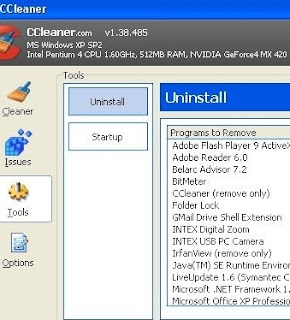
With the help of Tools button we can uninstall any program in our system.
Monday, April 09, 2007
Make your Windows XP look like Vista with Vista Transformation Pack Final
The Vista Transformation Pack is a system transformation pack which will change the Microsoft Windows XP/Windows Server 2003 interface to Windows Vista operating system. This is a free pack.
After installing the pack Go to Display Properties then click Appearances Tab. Then select a cool Longhorn or Vista theme and apply. Now your computer will look like Vista. At anytime you can change back to Windows XP style. At the time of installation, carefully read and follow all instructions. Usually no problems will come if you follow the instructions. You can uninstall Vista Transformation pack like any other program.
After installing the pack you will observe changes in the following things.
Boot screen
Welcome Screen / Logon Screen
New msstyles files (visual styles)
New desktop and file icons
New toolbar icons
Progress Dialogs
Sounds scheme
System Tray icons
New Wallpapers
Windows Media Player Skins
And much more
Download Vista Transformation Pack
Download Vista Transformation Pack from this link also
Wednesday, April 04, 2007
How can you make Firefox to open IE needed sites?
Some websites are not opening with Firefox browser. Those sites need only Internet Explorer. When we try to open those sites, Firefox will give error message like Sorry, IE is needed. For example if you try to open BSNL Broadband Usage Details site http://10.240.89.199, then Firefox will give error message Sorry, IE is needed. There are also some other sites that need only Internet Explorer.
There is a solution for this problem. We can make Firefox to open all IE needed sites with a Free Mozilla Firefox Add On IE TAB. Add-ons are small pieces of software that can add new features to Firefox. Firefox ie tab is Embedding Internet Explorer in tabs of Mozilla Firefox.
I will explain it's use. First open Firefox window. Then in address bar enter https://addons.mozilla.org/en-US/firefox/addon/1419. Now the page will open. Then click Install Now For Windows button. Then it will display that firefax ie tab is unsigned. Just click Install Now. After installation is completed it display Restart Firefox. Simply click Restart Firefox. Then Firefox simply restarted itself.
Now you will observe IE Tab Options on the Tools menu of Mozilla Firefox. Open it. You will observe like below.

Now if you want to open http://10.240.89.199 with Firefox, then enter the site in url field and click ADD. Then you will observe like below.

Then click APPLY and click O.K.
Now form View menu select Toolbars then select Customize. Now you will observe IE Tab like below.

Now just drag the IE Tab to the Toolbar of Firefox as shown below.
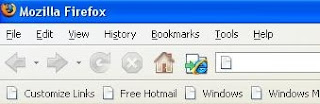
Now click on the IE Tab on the toolbar, then the rendering engine switches to IE and you will observe IE icon in address bar like below.(Now you will observe Firefox tab inplace of IE tab. So by clicking this tab we can switch rendering engine to and fro).

Now type http://10.240.89.199, then firefox open the site normally.