HP Smart Web Printing supports I.E 6.0 and I.E 7.0. After installaing HP Smart Web Printing, it adds two new buttons to the toolbar in your IE browser. They are Clip Book and HP Smart Select. Also it adds Clip Book Pane to your browser window's right side. You can turn it off by simply clicking the close button. It also adds Standard Selection and HP Smart Selection options to the Edit menu. Standard Selection is nothing but the Original Selection method of IE. So from Edit menu you can switch to HP Smart Selection or IE's Standard Selection.
What is the use of HP Smart Selection?
Selecting content you want on a web page using Internet Explorer's standard selection is difficult. Sometimes you want to select an image and text around it. Then it will be a difficult thing to do it with Standard Selection. But with HP Smart Selection feature you can select the content you want on a web page very easily. Also you can print that selected content.
How to select and print the content you want with HP Smart Web Printing 2.0?
First turn on HP Smart Selection from Edit menu of your IE browser. Now open the web page whose content you want to select, with Internet Explorer. Now drag out a rectangular area containing the content you want to select. Only content within the area is selected. A pop-up menu with the following options also appears when you make a selection as shown in the fig below.
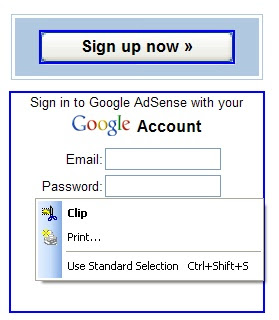
If you choose the Clip option, then the selected content will be added as a Clip to the Clip Book Pane on the the right side of the browser window. The Clip Book can store upto 100 clips. Once the clip is added to the Clip Book Pane then you can print the content in the clip or you can save the content in the clip as a PDF file.
If you choose Print option, then You can print the selected content with the printer you have.
If you choose Use Standard Selection then the present HP Smart Selection mode will be switched back to Standard Selection.
How to save the entire Web page as PDF file with HP Smart Web Printing 2.0?
First turn on HP Smart Selection from Edit menu of your IE browser. Now open the web page you want to save as PDF file, with Internet Explorer. Now drag out a rectangular area over the entire page. Now a small pop-up menu appears as explained above with Clip, Print, Use Standard Selection options. Choose Clip option. Now the entire web page will be added as a Clip to the Clip Book Pane on the right side of the browser window as shown in the fig below.
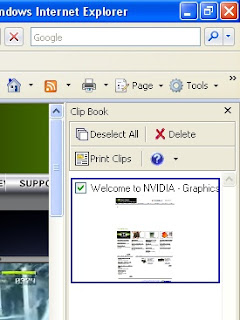
Now select Print Clips from the Clip Book Pane. Now Print Clips window will present on the screen. Now click Save As PDF button. Now choose a save directory and type a name for the PDF file then click Save. Now your entire Web page will be saved as a PDF file. But the Text and Images quality will be low as compared to the original web page.
Download HP Smart Web Printing 2.0


2 comments:
Way cool! Some very valid points! I appreciate you penning this article and the rest of
the site is really good.
Visit my site :: bmi index chart
I used to be able to find good advice from your blog posts. Entertaiment and relax in สล็อ
Post a Comment