Gran Paradiso Alpha 6 is the next version of current FireFox version. FireFox 3 is built on Mozilla's next generation layout engine, Gecko 1.9.
Gecko 1.9 Alpha 6 introduces several new features like inclusion of the FUEL Javascript library for extension developers, new Page Info window, improvements to offline application support, many Cocoa user interface improvements and bug fixes.
Gran Paradiso Alpha 6 or FireFox 3 is now available for Windows, Linux, and Mac OS X.
Windows Users can download FireFox 3 at the location below
Windows version FireFox 3
MAC OS X Users can download FireFox 3 at the location below
Mac Version FireFox 3
Linux Users can download FireFox 3 at the location below
Linux Version FireFox3
Windows Users can also download FireFox 3 at the following location
ftp://ftp-mozilla.netscape.com/pub/mozilla.org/firefox/
releases/granparadiso/alpha6/win32/en-US/
In FireFox, I.E 7.0 just type the above address then press enter. Then it will open the site then click Gran Paradiso Setup Alpha 6.exe link.
Tuesday, July 03, 2007
FireFox 3 (Gran Paradiso Alpha 6) Released


How to install and configure UltraVNC for Remote computer access?
UltraVNC is a free powerful software which displays the the screen of another computer on your own screen via internet or network. So you can easily control the other PC with your mouse and keyboard. So you can work on a remote computer right from your current location.
Suppose if you have computers in LAN network. you want to control system with IP Address 192.168.1.6 from a system with IP Address 192.168.1.7. Now I will explain how to control 192.168.1.6 from 192.168.1.7 using UltraVNC.
First install UltraVNC in both systems. During installation select full installation of UltraVNC. Full installation installs UltraVNC Server and UltraVNC Viewer. So install UltraVNC Server and UltraVNC Viewer in both of the systems.
After completing installation, now run UltraVNC as Server from system with IP Address 192.168.1.6. You will observe on the screen as shown below.

Now type a VNC Password as you like then click Apply then click O.K. Now UltraVNC Server runs on 192.168.1.6
Now if you want to control 192.168.1.6 from another sytem in the LAN network with IP Address 192.168.1.7 then run UltraVNC as Viewer from 192.168.1.7. You will observe on the screen as shown below.
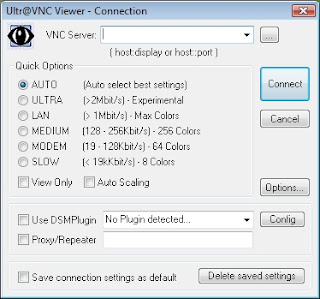
Now in VNC Server box type 192.168.1.6 then click Connect. Now it prompts you to type the VNC Password. So type the VNC Password that you already set to the VNC Server then click Logon. Now VNC Viewer starts on 192.168.1.7 as shown below.
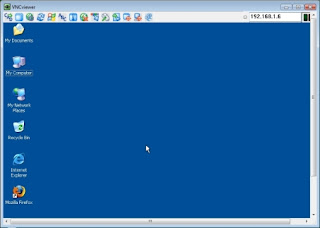
So the desktop of 192.168.1.6 now appears on 192.168.1.7 as shown above. So now you can control 192.168.1.6 as you like from 192.168.1.7.
Suppose if you open I.E and starts surfing the net on 192.168.1.6 then you can observe all your activities in 192.168.1.7 also. All of your sites will also open in VNC Viewer of 192.168.1.7.
We can also chat with 192.168.1.6 from 192.168.1.7 by clicking Open Chat button from VNC Viewer of 192.168.1.7. The chat window will be as shown below.
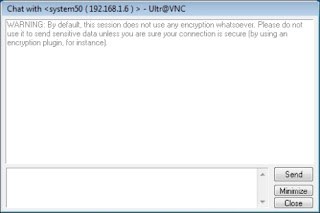
Now you learnt how to configure UltraVNC to control a PC from another PC in a LAN Network. You can also apply the same procedure for controlling a Remote computer via internet using UltraVNC.
Download UltraVNC
Microsoft .NET Framework 3.5 Beta 1 Released
All existing applications built for .Net Framework 2.0, 3.0 also run in .Net Framework 3.5. Microsoft planned to release the final package at the end of 2007.
New features are added in major technology areas. They are
Deep integration of Language Integrated Query and data awareness
ASP.NET AJAX for quickly creating more efficient, more interactive and highly-personalized Web experiences that work across all the most popular browsers
New web protocol support for building WCF services including AJAX, JSON, REST, POX, RSS, ATOM and several new WS standards
Full tooling support for WF, WCF and WPF including the new workflow-enabled services technology
New classes in the base class library for the .NET Framework 3.5 address the most common customer requests.
Download .Net Framework 3.5 Beta
Monday, July 02, 2007
ooVoo
ooVoo is a free program which is used to connect with friends, family, and colleagues using full video and sound. You need Broadband internet connection, webcam, microphone, and speakers to use ooVoo. ooVoo supports Windows 2000/XP/Vista. At present beta version is available for windows only. At present ooVoo is not available for Mac and Linux. ooVoo contains no spyware, no cookies.
Features:
Talk face to face with up to 6 people at a time
Smooth video displayed in 3D with clear sound
When No one answering your call then you can leave a voice, video or text message
Adjust/Mute microphone, speakers or camera
Choose your ringtone
View call history (missed calls, incoming calls, etc.)
Record and send video messages to ooVoo users or friends who don't have ooVoo yet. Then your friends will receive a notification email with a link to download ooVoo.
Send to as many people as you want at once
Play video message on any computer
Save the video message to your computer
Use video messages for birthday party invites, sales contacts or as postcards from your travels
Chat with one person or with up to six people at once
Easily invite your contacts to join a text chat session
Send chat messages to offline contacts
With ooVoo you can send large files to your contacts anytime
Send large files (up to 25 MB per file)
Send up to 20 files at a time to as many contacts as you want
Send files to contacts who are offline
Download ooVoo
Saturday, June 30, 2007
UltraVNC, A Free Remote Control Software
UltraVNC 1.0.3 RC6 Beta version with improved Vista support is available to the public. UltraVNC is a powerful free Remote control software to access distant computers. With UltraVNC you can access your computer or your friends or relatives computers from anywhere in the world. UltraVNC displays the screen of a remote computer on your own desktop via internet or network. You can use your mouse and keyboard to control the remote computer.
If you are in the customer support field, then with UltraVNC you can access your customer's computers and can resolve helpdesk issues remotely. UltraVNC is helpful to IT departments, Remote Computer Support companies, Help desk, Remote demonstration, Remote Computer Access, eLearning, and classroom control.
UltraVNC supports Win 95, 98, Me, NT4, 2000, XP, 2003, Windows Vista.
You have to download UltraVNC 1.0.3 RC6 setup file and UltraVNC 1.0.3 RC6 Addons setup file at the location given below. Addons setup file contains Video Driver and Special Service. Special Service is required for Vista but not necessary. Video driver is for W2000, 2003, XP, Vista. Video driver is optional. Video Driver is used to speed up the remote access. UltraVNC 1.0.3 RC6 is enough for all Windows Operating Systems.
For how to install and configure UltraVNC for remote computer access read the article below.
Configure UltraVNC
Download UltraVNC