Wednesday, June 20, 2007

Xfire, The Instant Messenger for gamers


Xfire is a free tool whick keeps track of when and where gamers are playing PC games online and lets their friends join them easily. It doesn't matter which online game your friends are playing, which server browser they are using, or which gaming service they are playing on.

You can chat with your gaming friends as you chat in regular Instant Messengers. Xfire supports latest PC games also.

After installing Xfire you have to register a Username. After you got registered with them, enter your username and password then login into your account. Now add your friends to your buddylist, then start online gaming with them. You will get more from Xfire by adding more friends to your buddylist.

See the screenshot of Xfire.


System Requirements:
10 MB hard drive space
Windows 2000, XP, or Vista Operating Systems
Internet Explorer 5 or higher with internet connection(Broadband connection recommended)

Download Xfire


Monday, June 18, 2007

The 10 things a Newbie must know in Windows Vista


1. How to place Computer, Control Panel Icons on the desktop in Windows Vista?

Click the start button. Now right click on Computer then choose Show On Desktop. Similarly click the start button. Now right click on Control Panel then choose Show On Desktop.

Also we can place Computer, Recycle Bin, User's Files, Control Panel, and Network Icons on the Desktop in a simple way as explained below.

Right click on blank area of desktop then select Personalize. On the left hand side you will observe Change Desktop Icons. Click it. Now Desktop Icon Settings window will open. Now select Computer, Recycle Bin, User's Files, Control Panel, and Network. Then click Apply then O.K.

Now all the selected Icons will be present on the Desktop.

2. How to change your Computer Name and WorkGroup or Domain?

Right click Computer then select Properties. Now click System Protection. Then click continue. Now click Compute Name tab. To rename your Computer or Workgroup just click change button. Now type your Computer name, Workgroup or Domain then click O.K. Again click O.K. Then Restart your Computer.

3. How to view Network Computers and Devices in Windows Vista?

Before viewing Network Computers first configure Local Area Connection of all computers properly. Configure them to a unique Workgroup or Domain. Then do like below.

Open Control Panel. Then click Network and Internet. Now click Network and Sharing Center. Now click View Computers and Devices. Then it will display Network Discovery and File sharing are turned off, Click to change. You will observe yellow background behind the above message. So just click click to change. Then choose Turn ON Network discovery and File Sharing. Now click continue. Now click Yes Turn ON network discovery and file sharing for all public networks. Now you will observe all computers in the network when you click View Computers and devices.

4.Where can we find Run, Command Prompt buttons and Device Manager in Windows Vista?

Click Start button. Now click All Programs. Now click Accessories. We will find Run, Command Prompt buttons in Accessories.

For Device Manager just right click Computer then select properties. Now you will observe Device Manager on the top left hand corner of the window.

5. Where can we find Folder Options in Windows Vista?

For Folder Options, open Control Panel. Now click Appearance and Personalization. Now click Folder Options. Now click View menu. Now we have choice to show hidden files and folders or do not show hidden files and folders.

6. How to uninstall a program in Windows Vista?

Open Control panel. You will find uninstall a program under Programs. Just click it. Now it will display all programs. Just click a program. Now click uninstall tab.

7. How can you turn Windows Vista features on or off?

Open Control Panel. Now open Programs. Now click turn Windows features on or off. Now click continue. Now it will display all features like games, IIS, .Net Framework 3.0 etc. To turn a feature on, select it's checkbox. To turn a feature off clear it's check box. A filled box means that only part of the feature is turned on. .Net Framework 3.0 is partly turned on. We can turn on all of it's features also by putting tick marks to all features of .Net Framework 3.0.

8. How to use an older program with Windows Vista?

Open Control Panel. Now open programs. Now click use an older program with this version of Windows under Programs and Features. Now Program Compatibility Wizard will open. Now click next and follow the instructions.

9. How can you change settings of Windows defender in Windows Vista?

Open Control Panel. Now click Programs. Now click Windows Defender. Now click Tools. Now click Options. Then Options window will open. Now you can change settings of Windows Defender as you like.

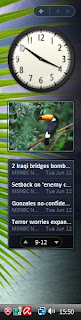
10. How to Add the Clock Gadget to Windows Sidebar in Windows Vista?

Open control panel. Click Clock, Language, and Region. Now click Add the Clock gadget to Windows sidebar. Now the Sidebar will appear as shown below. It displays Clock, Slide Show, and RSS headlines.


We can also add so many gadgets like Currency Converter, Calender, CPU Meter etc. By clicking plus sign in the above figure we can add so many gadgets.


Saturday, June 16, 2007

Windows Server 2008 Public Beta


Microsoft Windows Server 2008 is the next generation of the Windows Server operating system. Windows Server 2008 builds and based on Windows Server 2003 operating system.

In Windows Server 2008 powerful improvements are made to the base operating system over Windows Server 2003. Powerful improvements are made to networking, advanced security features, remote application access, centralized server role management, performance and reliability monitoring tools, failover clustering, deployment, and the file system.

Download Windows Server 2008 Beta


IZArc 3.81


IZArc is a freeware archive utility. It supports archive formats like 7-ZIP, A, ACE, ARC, ARJ, B64, BH, BIN, BZ2, BZA, C2D, CAB, CDI, CPIO, DEB, ENC, GCA, GZ, GZA, HA, IMG, ISO, JAR, LHA, LIB, LZH, MDF, MBF, MIM, NRG, PAK, PDI, PK3, RAR, RPM, TAR, TAZ, TBZ, TGZ, TZ, UUE, WAR, XXE, YZ1, Z, ZIP, ZOO.

IZArc repairs damaged zip archives. IZArc opens ISO, BIN, CDI and NRG cd image files. Also IZArc converts cd image files from one type to another.

With IZArc you can easily create self-extracting archive that can be extracted easily by double clicking the file. Just right click an archive file. Now select IZArc then choose Create Self-Extracting (.EXE) File.

IZArc converts one archive format to other format. Just right click an archive file. Now select IZArc then choose Convert Archive. Just select the Output format then click O.K.

IZArc supports 256-bit AES encryption to secure your data. IZArc supports multi languages.

IZArc is compatible with Windows 98/NT/2000/XP/2003/Vista (32 bit).

Download IZArc


Friday, June 15, 2007

Vista Codec Package 4.4.6


This is a Free Vista Codec package. This package contains all the Codecs you will need to view all movies and videos. Also you can listen all audio files. So you won't need to install any other Codec package. So uninstall all other Codecs before installing this package.

Recent package changes
Fix MP4 playback
Improve Nero product compatibility
Allow thunbnail views for rmvb, mp4, flv, mov, mkv, more
Remove several redundant files/filters
Fix DVD Playback in WinXP
FFDshow updated 1283 unicode
AC3Filter updated to 1.45b with Language files
Haali components updated to 1.7.189.11
MPEG1 files handled by microsoft decoders

Download Vista Codec Package 4.4.6