Suppose you have an .avi file. When you try to play it, then audio works but video not works. This is due to the missing of a particular video codec. How can you know about that particular video codec required for that .avi file? Gspot utility is the answer.
Gspot ulility idetifies which video codec and audio compression method is used on .avi files. Gspot tells about the video codecs (audio and video) that are required to play an AVI file.
Gspot determines whether these codecs are installed on your system.
Gspot identifies (only identification) non-AVI files (.flv, mp4, .mpg, .mov, .qt, .rm, .swf, .wmv, .asf, etc.)
Gspot is freeware.
No need to install it. Just double click the exe file.
Gspot is very easy to use. Simply goto file menu then open the required avi file. Then Gspot will immediately display the results. You can read the results immediately.
Download Gspot utility
Friday, May 25, 2007
Utility that idetifies which video codec and audio compression method is used on .avi files


Tuesday, May 22, 2007
Beautiful Analog Desktop Clock
A beautiful analog clock for your windows desktop. This simple clock sits on your desktop. This is a Freeware. This clock has 50 predefined styles. You can create your own style or skin also. You can set the style you want. You can set an alarm also for your important events. So you never miss an appointment with your friends, colleagues, boss. You can set an alarm for your Lunch, Breakfast etc. It's alarm system alerts you by default windows sound scheme. This clock has calendar also. Simply right click on the clock then choose Calender. Then the clock will display the calendar on the desktop. Once look into the predefined styles of the clock below.


You can set the alarm very easily. Just right click the clock on the desktop. Now select Alarms. Then click Add New button. The window will be like below.

Suppose you want to set an alarm for your lunch. First set the time you want. If you set time for lunch then in the message box type Lunch. Then tick at Play a sound. Now from the drop down menu select a default windows sound scheme then click O.K. Then Alarms window will come. Just click O.K. So you set an alarm for your lunch very easily. The alarm will alert you at the specified time by windows default sound scheme.
In the above figure you will observe Run a program option. With this option you can run a program at a specified time set by you.
Download Clock
Saturday, May 19, 2007
The Smallest Web Browser(60 kb file)
MA Internet Browser is the smallest browser with 60 kb size only. This browser is based on the IE technology. It was developed by Mahmoud, 18 years old student in Ain Shams University faculty of Engineering in Egypt. We can run this program in Windows(English version) only.
It is very easy to use. First download the zip file. Then unzip it. Simply copy the folder to the location you want on your HD. Double click it to run the program. Some times it will give error message like COMDLG32.OCX missing or invalid. MA Internet Browser needs this library file. In order to fix the above problem, you shall need to set up and register that library file. Download the following Library Installer and install it, then all problems regarding library files will be solved.
Download Ascentive Library Installer
When you start the program the browser window will be like this.

Wednesday, May 16, 2007
Check your link partners sites to verify reciprocal links back to you by QuidProQuo Reciprocal Link Checker Software
How can you know whether your link partner kept reciprocal link back to you or not? Generally we visit their site, and check their links page for our link. Sometimes it may be very difficult for us to check for our link in our link partner's site if he kept hundreds of links. We can do the link checking easily by QuidProQuo Reciprocal Link Checker Software. QuidProQuo Reciprocal Link Checker Software is a Freeware. It is available as Lite version only. Later we can make it as Full version very easily. Both are doing the same work. QuidProQuo Lite version will spider the websites slowly. QuidProQuo Lite version allows up to 2 threads only. QuidProQuo Full version allows up to 16 threads. It will spider multiple websites at the sametime. So QuidProQuo Full version will spider the websites fastly than Lite version. Only speed is the difference. Other functions are same for both Lite and Full versions.
QuidProQuo Reciprocal Link Checker Software automatically scans your site and locates your link partners.
QuidProQuo Reciprocal Link Checker Software spiders through your link partners sites and verifies reciprocal links back to you.
QuidProQuo Reciprocal Link Checker Software finds link cheaters. Link cheaters are those to whom we are linking but they are not linking back to our sites.
How to use QuidProQuo Reciprocal Link Checker Software?
Start the QuidProQuo Reciprocal Link Checker Software. Now from the Spider menu select Enter your site URL. Type your URL name in the box then click O.K. If you have Full version then increase your Connections to 16 by clicking on up arrow tab.
Now again from Spider menu select Find on your Website from Select Sites to Spider option. Then it will start scanning your site for any website links on your site. It will take time for scanning. After scanning completed it will display all website URL's on your site. These URL's includes your link partners also. So after scanning the software displays each and every website link on your site. The display window will be like below.
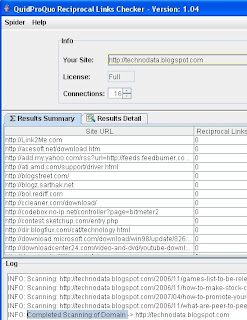
Now from the Spider menu select Spider Partner Sites then QuidProQuo Reciprocal Link Checker Software spiders through all the displayed URL's and verifies reciprocal links back to you. It will take long time for verification since Reciprocal Link Checker Software scans all pages of displayed URL's completely. After verification of a particular URL, it displays all reciprocal links back to you from that particular site.
With QuidProQuo Reciprocal Link Checker Software we can scan a particular page of our website also.Suppose you want to scan a page http://www.example.com/links.html on your website http://www.example.com. Procedure is also same as above. Start QuidProQuo Reciprocal Link Checker Software program. Now from the Spider menu select Enter your site URL. Type your URL http://www.example.com in the box then click O.K. If you have Full version then increase your Connections to 16 by clicking on up arrow tab. Now again from Spider menu select Find on a page from Select Sites to Spider option. Now enter http://www.example.com/links.html in the box displayed then click O.K. Then it displays each and every website link on that page. Now from the Spider menu select Spider Partner Sites then QuidProQuo Reciprocal Link Checker Software spiders through all the displayed URL's in that particular page http://www.example.com/links.html and verifies reciprocal links back to you.
With QuidProQuo Reciprocal Link checker Software we can also check whether a particular site has link backed to you or not. Procedure is like below.
Start the QuidProQuo Reciprocal Link Checker Software. Now from the Spider menu select Enter your site URL. Type your URL name in the box then click O.K. If you have Full version then increase your Connections to 16 by clicking on up arrow tab.
Now again from Spider menu select Edit Sites to Spider from Select Sites to Spider option. Now type the website address which you want to check then click O.K. Now from the Spider menu select Spider Partner Sites then QuidProQuo Reciprocal Link Checker Software spiders through that particular site and verifies reciprocal links back to you.
How to Upgrade Lite version to Full version?
It is very easy for website owners. Just place a reciprocal link to http://www.webmastersloom.com on any page of your site.. Now start QuidProQuo Reciprocal Link Checker Software. Now from Help menu select Upgrade to a Free Full License then click Get Upgrade button. Now type your site address then click O.K. Then QuidProQuo Reciprocal Link Checker Software scans your site for reciprocal link back to their site. You already put a reciprocal link to their site. So QuidProQuo Reciprocal Link Checker Software verifies the reciprocal link. After scanning completed Just close the program and again start the program. From now it upgrades to full version.
Download QuidProQuo Reciprocal Link Checker Software
Saturday, May 12, 2007
Capture and Record Gloopitcam video, Webcam video and any video playing on your screen with StudioPRO
It allows you to capture any video playing on your screen. So you can capture Gloopitcam or IVBot video, Webcam video, Live streaming video, Pre-recorded video clips playing on any media player. StudioPRO also allows you to record and save the video in so many file formats and compression qualities.
We can play video files with StudioPRO. We can broadcast our webcam output simultaneously on multiple camera chat sites like Yahoo Messenger, MSN Messenger and Skype. Also we can build playlists from our own video files stored on our harddisk and we can play those files to friends who are viewing our webcam.
Capture and Record Gloopitcam or IVBot video as explained below.
I already explained about Gloopit or IVBot in my previous article. Once read it then follow this article. Start your Gloopit or IVBot program. Place the webcam in right place and adjust it's angle until it finds your face correctly. Also apply your favourite video emoticon like evil mask. If your PC has microphone connection then your audio will also be recorded.
For recording your movements via Webcam, now you have to start broadcaster studiopro program. Now you will have the following options as shown in the figure.
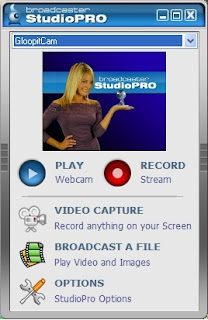 Now from the dropdown menu select Gloopitcam or IVBot as shown above in the figure. Now click Video Capture. Now you will observe the following options.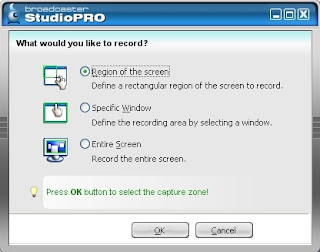
Select the option Region of the screen . With this option we can define a rectangular region of the screen to record. Just click O.K. Now a rectangular marquee appears on the screen. Now put the pointer on the marquee and drag it on to the image of the Gloopitcam(IVBot) or Webcam. Also with the help of pointer you can resize the marquee by dragging one of the corners of the marquee. After setting the marquee on the image, then click Record button on the studiopro program. Then Welcome to Video recording Wizard will come on the screen as shown below.
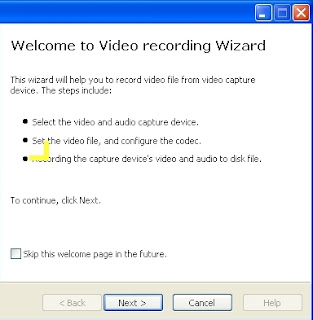
Just click next. Again click next. Now File selection window will come on the screen as shown below.
Now select the file type of your captured video. Also enter the file name for your captured video. Also select a place to save your captured video. Then click next. Again click next. Now click Start Capture button. Now it will capture the video and save it in the location specified by you. After finishing your work just click Stop Capture.
You can not only capture a Webcam Video, You can also capture any video playing on your screen. Same procedure is applied for capturing any video. You can capture You tube online videos also as explained above. But for online videos some disturbance is coming in the recorded videos. Gloopitcam or IVBot, Webcam recorded videos are very good in quality. Observe the following captured Gloopitcam video by me.
Download StudioPRO