Windows 7 is the new operating system from Micosoft. It is the successor of Windows Vista. At present Microsoft is developing this new operating system Windows 7. Previously Windows 7 was codenamed as Vienna. Now 7 is the internal code name of Windows 7. Windows 7 will be released in about 3 years.
Windows 7 will be available in both consumer and business versions. Also it will be available in both 32 bit and 64 bit versions. Also Microsoft may change the new operating systems name after it's development is completed. Windows Vista is based on NT kernel 6. So at present they named the new operating system as Windows 7.
Monday, July 23, 2007
Windows 7 is expected in 2010


Comodo Antivirus free for lifetime
Comodo Antivirus software developers are offering free lifetime license. Comodo supports Windows XP (SP2) and Windows 2000 (SP4 or Later). It does not support Windows 9x systems.
At present Comodo AntiVirus 2.0 beta version is available. Final version will also be free to both home and business users. Comodo Antivirus definition updates are also free for life to all users. Comodo Antivirus protects your computer against all known Viruses, Trojans and Worms.
Features of Comodo Antivirus:
Automatic Email scanning
Automatic Daily Updates
It scans compressed files such as .RAR, .ZIP, CAB files
It scans Network Drives also for Viruses, Trojans etc
Faster Virus scanning
Instant scanning of any file, folder, drive
Advanced Virus detection Engine
Continuous scanning of PC memory
Block worms
Download Comodo Antivirus
Saturday, July 21, 2007
Update your Hotmail account to Windows Live Hotmail account
Windows Live Hotmail is the next generation of MSN Hotmail. Windows Live Hotmail brings you 2GB space, improved spam protection. It identfies suspicious email by color coded safety bar. It scans every incoming email and attachment automatically for viruses. You can send attachments of size upto 10 MB now. Lot of Themes are available in new hotmail. You get the themes from Options tab. You can change the color of the window as you like with themes. You can change your Inbox view to an advanced view. In Advanced View, you can preview email message without opening it. See the screenshot below.

In Advanced View on the left you have check mail, Contacts etc. In the middle of the window you have your messages. If you select any message then preview of the message will appear to the right side of the window as shown above in the figure.
If you donot like the Advanced View then you can switch back to traditional Inbox view by clicking Switch To Classic button on the left side of the window. Also you can switch back to MSN Hotmail easily. Simply click the Options tab. In that window you will observe Switch To Hotmail link.
Update your Hotmail account to New Hotmail
http://mail.live.com is the web address of new Hotmail site.
Friday, July 20, 2007
SeaMonkey 1.1.3 Released

Mozilla Foundation's SeaMonkey Project released it's latest version. It has fixed several bugs and several security vulnerabilities found in previous SeaMonkey versions. It is a Freeware.
SeaMonkey is an all-in-one Internet application suite. In one application we have Web-browser, advanced e-mail and newsgroup client, IRC chat client, and HTML editor.
The SeaMonkey browser includes all the features of a modern browser. It includes modern features like Tabbed browsing, Popup blocker, Image Manager etc. You can control your email from spammers by SeaMonkey's Junk Mail controls. You can manage your email with customizable Labels and Mail Views and color code your email.
SeaMonkey supports windows 95, 98, 98SE, Windows Me, Windows NT 3.51, Windows NT 4.0, Windows 2000, Windows XP, Windows 2003, Mac and Linux.
So many Browser Extension Add-ons, Plugins, Sevaral Themes are available for SeaMonkey at the Mozilla site given below.
Download SeaMonkey
How to select and print the content you want on the Web page with HP Smart Web Printing 2.0?
HP Smart Web Printing supports I.E 6.0 and I.E 7.0. After installaing HP Smart Web Printing, it adds two new buttons to the toolbar in your IE browser. They are Clip Book and HP Smart Select. Also it adds Clip Book Pane to your browser window's right side. You can turn it off by simply clicking the close button. It also adds Standard Selection and HP Smart Selection options to the Edit menu. Standard Selection is nothing but the Original Selection method of IE. So from Edit menu you can switch to HP Smart Selection or IE's Standard Selection.
What is the use of HP Smart Selection?
Selecting content you want on a web page using Internet Explorer's standard selection is difficult. Sometimes you want to select an image and text around it. Then it will be a difficult thing to do it with Standard Selection. But with HP Smart Selection feature you can select the content you want on a web page very easily. Also you can print that selected content.
How to select and print the content you want with HP Smart Web Printing 2.0?
First turn on HP Smart Selection from Edit menu of your IE browser. Now open the web page whose content you want to select, with Internet Explorer. Now drag out a rectangular area containing the content you want to select. Only content within the area is selected. A pop-up menu with the following options also appears when you make a selection as shown in the fig below.
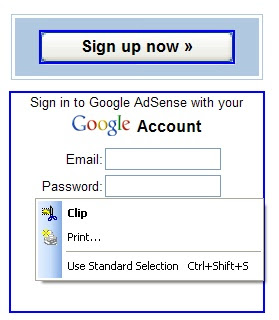
If you choose the Clip option, then the selected content will be added as a Clip to the Clip Book Pane on the the right side of the browser window. The Clip Book can store upto 100 clips. Once the clip is added to the Clip Book Pane then you can print the content in the clip or you can save the content in the clip as a PDF file.
If you choose Print option, then You can print the selected content with the printer you have.
If you choose Use Standard Selection then the present HP Smart Selection mode will be switched back to Standard Selection.
How to save the entire Web page as PDF file with HP Smart Web Printing 2.0?
First turn on HP Smart Selection from Edit menu of your IE browser. Now open the web page you want to save as PDF file, with Internet Explorer. Now drag out a rectangular area over the entire page. Now a small pop-up menu appears as explained above with Clip, Print, Use Standard Selection options. Choose Clip option. Now the entire web page will be added as a Clip to the Clip Book Pane on the right side of the browser window as shown in the fig below.
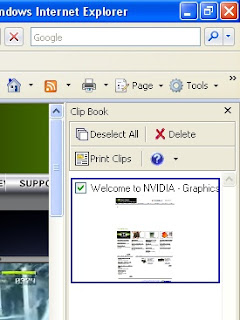
Now select Print Clips from the Clip Book Pane. Now Print Clips window will present on the screen. Now click Save As PDF button. Now choose a save directory and type a name for the PDF file then click Save. Now your entire Web page will be saved as a PDF file. But the Text and Images quality will be low as compared to the original web page.
Download HP Smart Web Printing 2.0
Subscribe to:
Posts (Atom)