Friday, July 13, 2007

PeaZip


PeaZip is an open source portable file archiver. You can compress, extract, and split a file with Peazip. It supports Windows all versions and Linux.

PeaZip supports its native PEA archive format. Also PeaZip supports many archive formats like 7Z, 7Z-sfx, BZip2, GZip/TGZ, PAQ8F, PAQ8JD, PAQ8L, PEA, QUAD, split (.001), TAR, ZIP. PeaZip reads many archive formats like ACE, ARJ, CAB, CHM, CPIO, ISO, Java archives (JAR, EAR, WAR), Linux installers (DEB, PET/PUP, RPM, SLP), LHA, LZH, Open Office file types, PAK/PK3/PK4, RAR, Windows installers (NSIS, some MSI), Z/TZ.

Compression
Just right click the file you want to archive. Then select Add to separate archive. Then PeaZip program window will open.
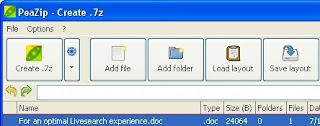

Now click customize orchive options button(small down triangle). Then select your archive format type, Compression level. Now click Create archive button. Now choose the save directory, file name then click Save button.

Extraction
Right click the archive file you want to extract. Then select Extract archives here.

Split
Right click the file you want to split. Then select Split file. Now type the split volume size in Megabytes then click O.K.

Download PeaZip


Free Uninstaller


Free Uninstaller is the freeware uninstall tool. You can use this tool instead of Add/Remove program.

Free Uninstaller displays list of the installed applications, invalid entries, and System components. Invalid elements are highlighted with red color. System components are highlighted with dark blue. System components are hidden by default since removing System components can damage the operating system. Free Uninstaller display System components by selecting Show system components from the view menu.

You can easily uninstall a installed application or invalid entry with Free Uninstaller. Simply select the application or invalid entry in the list then click Uninstall button. You can also remove any application or entry from the displayed list. Simply select it and click Remove button. You can get additional information about the selected application on the bottom panel. You can hide the bottom panel also. Just deselect Show/Hide bottom panel from the view menu.

You can generate backup of the system uninstall list to a REG file with Free Uninstaller.

Download Free Uninstaller


Thursday, July 12, 2007

Windows Live OneCare 2.0 Beta released


Windows Live OneCare 2.0 protects your system from viruses, hackers, and other threats. It also performs regular tune-ups to help keep your PC running at top speed, and helps you back up important documents.

Windows Live OneCare 2.0 Beta will regularly update itself based on emerging Internet threats. It runs in the background. It provides anti-virus, anti-spyware, online identity and scam protection and firewall protection.

Windows Live OneCare 2.0 Beta is supported in Australia, Austria, Belgium, Canada, France, Germany, Ireland, Italy, Japan, Mexico, Netherlands, New Zealand, Singapore, Spain, Switzerland, UK, and US only.

Windows Live OneCare 2.0 Beta supports all editions of Windows XP SP2, Windows Vista Home Basic, Home Premium, Business, Ultimate editions, and X64 for Windows Vista.

Sign up Windows Live OneCare 2.0 Beta


Wednesday, July 11, 2007

Autoruns

Autoruns utility shows you what programs are configured to run during system bootup and shows you the entries in the order Windows processes them. These programs include ones in your startup folder, Run, RunOnce, and other Registry keys.

Autoruns shows you the currently configured auto-start applications as well as the full list of Registry and file system locations available for auto-start configuration. Autostart locations displayed by Autoruns include logon entries, Explorer add-ons, Internet Explorer add-ons including Browser Helper Objects (BHOs), Appinit DLLs, image hijacks, boot execute images, Winlogon notification DLLs, Windows Services and Winsock Layered Service Providers.

Run Autoruns and it shows you the currently configured auto-start applications as shown in the figure below. Due to limited place I crop the picture. So you can observe some applications only.


Disabling and Deleting Entries
If you don't want an entry to active the next time you boot you can either disable or delete it. To disable an entry uncheck it. You delete items by choosing Delete in the Entry menu. Only the currently selected item will be deleted.

Getting More Information about an Entry
There are several ways to get more information about an entry. To view a location or entry in Explorer or Regedit chose Jump To in the Entry menu. Autoruns automatically execute an Internet search in your browser by selecting Search Online in the Entry menu.

Autoruns works on all versions of Windows including 64-bit versions.

Download Autoruns

Windows Vista Hardware Assessment version 2.0


The Windows Vista Hardware Assessment is a tool that will find computers on a network and perform a detailed inventory of the computers using Windows Management Instrumentation (WMI). Then the tool will assess and report whether the computers can run Windows Vista or not, with the use of the detailed inventory data. This tool will find drivers for devices on the computers, and provide recommendations for hardware upgrades.

System Requirements

Supported Operating Systems:
Windows Server 2003 R2 (32 Bit x86), Windows XP Service Pack 2, Windows Vista

Hardware Requirements:
1.6-GHz or high speed processor minimum
1 GB of RAM minimum
1 GB of free hard-disk space
10/100 Mbps network adapter card

Software Requirements:
Microsoft SQL Server 2005 Express Edition for storing inventory and assessment data. Microsoft Word 2003 SP2 or Microsoft Word 2007 and Microsoft Excel 2003 SP2 or Microsoft Excel 2007 for generating reports.

Download Vista Hardware Assessment tool