You can create Windows installers with NSIS that are capable of installing, uninstalling, setting system settings, and extracting files etc. Nullsoft Scriptable Install System (NSIS) is a professional open source system.
Other installers add hundreds of kilobytes or several megabytes to your installer data. But NSIS add only 34 kilobytes to your installer data. With NSIS, you can create a single installer that is compatible with Windows 95, Windows 98, Windows ME, Windows NT, Windows 2000, Windows XP, Windows Server 2003 and Windows Vista.
Features of NSIS:
Generates self-contained executable installers
Support for ZLib, BZip2 and LZMA data compression
Uninstall support
Classic and Modern wizard interface
Support for multiple languages in one installer. More than 40 translations are already available.
You can add standard wizard pages or custom pages
Multiple install configurations (usually Minimal, Typical, Full), and custom configuration
Installer self-verification using a CRC32 checksum
Ability to display a license agreement in text or RTF format
Ability to detect destination directory from the registry
Installers can be as large as 2GB
A lovely coding experience with elements of PHP and assembly.
Download NSIS
Tuesday, August 28, 2007
Create Windows installers with open source NSIS


Monday, August 27, 2007
Desktop PC security enhanced by new Intel vPro Processor Technology
The new Intel vPro Processor Technology includes a powerful new Intel Core 2 Duo processor, Intel Q35 Express chipset, improved System Defense Filters, embedded trust agent, and Intel Active Management Technology. All these technology innovations offers a host of security and management capabilities for desktop PCs. All these features included in this latest Intel vPro processor technology are designed to protect against software-based attacks and also filter and defend against viruses and other threats. So all these technology innovations will enhance the Desktop PC security.
These new processors include Intel Core 2 Duo E6550, E6750 and E6850 processors.
Following are the figures of Intel Core2 Duo processor E6550 and Intel Q35 Express chipset.


Saturday, August 25, 2007
Get RGB, HEX, and Long value of any color you see
With Pixeur you can view colors, you can get RGB, CMYK, HSB, Long values of any color. You can also get Hexadecimal value of any color you see. Pixeur is a freeware application.
It is very easy to use. Just run Pixeur program. Select a color on the Pixeur color palette with mouse pointer. Then Pixeur will display Hex value, RGB, CMYK, HSB values of that color as shown in the figure below.
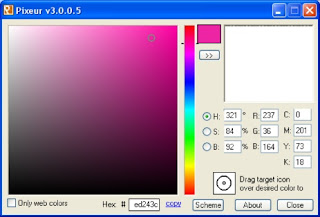
In the figure observe Target Icon. If you drag the Target Icon over a color on the Pixeur color palette then that color's RGB value will be displayed on right side history panel. By right clicking on this panel you can export history, you can import history and you can clear history. Also you can get any color's Long Value by right clicking on history panel and by choosing Copy As/Long Value.
Pixeur supports Windows 98 / ME / NT / 2K / XP / 2K3 / Vista
Download Pixeur
Friday, August 24, 2007
You can upload your videos to Blogger now
Blogger added Video uploading feature. This feature allows bloggers to upload their videos to Blogger. Also with this feature bloggers can create a video podcast very easily. Now you will see a new button when you go to your Blogger post editor as shown in the figure below.

For more information regarding Video uploading and for how to create a video podcast, visit this link.
You can fill a Scanned form, then print that filled form or save it as PDF file
You can easily fill a scanned form using Bytescout Form Filler. Then you can print that filled form or save it as a PDF document or fillable PDF form. Also You can scan an image with Bytescout Form Filler by using File/Scan Image/Acquire. This is a freeware software.
How to fill form using Bytescount Form Filler?
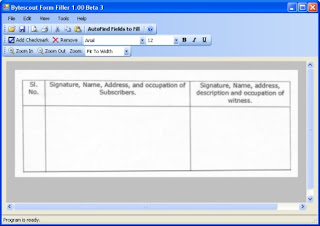
Run Bytescout Form Filler. Then open the Scanned Form with Bytescout Form Filler by using File/Open. Then Bytescout Form Filler will open the scanned form picture as shown below.
Now click AutoFind Fields To Fill button. Then program will recognize text fields to fill and you will observe Type Text Here fileds after one or two seconds as shown below.
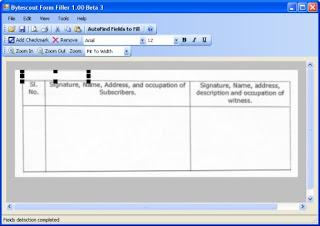
Now resize Type Text Here box with mouse pointer then put it in S.No column. Now type your S.No as shown below in the figure.
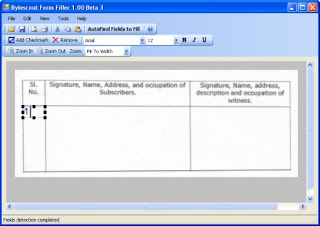
Now just click the mouse pointer in the second column. Then you will get the type box. I typed Praneel in the box. Again click below Praneel. Then you will get the type box. Now I typed Praneel's address step by step. You have to create type box for each line. After filling all the details in second column then click the mouse in third column. Now you will get the type box. Fill all the details step by step by creating Type boxes in each line.
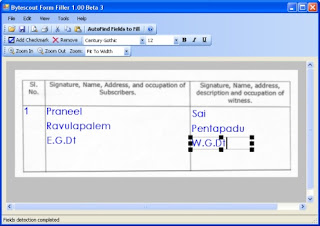
Now your form is ready to print. You can print the form by using Print command in File menu.
You can also save filled form as PDF document by using Save As PDF command in File menu.
Also you can use Save As PDF form command in file menu to save form with fields as fillable PDF form. Later you can open this form in Adobe reader and you can do any changes in the form. Then you can print that form. But you can not save this form using adobe reader as you have done changes in the form.
Bytescout Form Filler supports Windows 2000/XP/Vista. For this program to work in Windows 2000/XP, you must install Microsoft .NET Framework 2.0.
Note: I explained the procedure for filling column type scanned forms. You can easily fill ordinary type scanned forms. After you clicked AutoFind Fields To Fill button, the program will recognize text fields to fill and you will observe Type Text Here fileds after one or two seconds. Now fill first field by typing a name. Next Press TAB button to move focus to the second field and then type text in the second text field. Repeat the same process to fill the entire form.
Download Bytescout Form Filler